- The request
- Properties that are synced into SharePoint user profiles
- How can this request be solved? (Solution)
- Short way of the configured solution (without pictures and additional description)
The request
Your organization maintains custom attributes in Entra ID, such as employee ID, location name, hiring category, etc. that users want to search for in Teams or SharePoint Online.
Properties that are synced into SharePoint user profiles
The following Microsoft Entra user attributes are synced to the UPA (as of july 25, 2024 – Microsoft Learn).
| Microsoft Entra attribute | User profile property display names | Notes | Sync to sites |
|---|---|---|---|
| UserPrincipalName | Account Name User Name User Principal Name | Example: i:0#.f <|> membership <|> gherrera@contoso.com gherrera@contoso.com | Yes |
| DisplayName | Name | Yes | |
| GivenName | FirstName | Yes | |
| sn | LastName | Yes | |
| telephoneNumber | Work phone | Example: (123) 456-7890 | Yes |
| proxyAddresses | Work Email SIP Address | Work Email is set to the value prefixed with SMTP. (SMTP:gherrera@contoso.com) Example: gherrera@contoso.com | Yes |
| PhysicalDeliveryOfficeName | Office | Yes | |
| Title | Title Job Title | Job Title contains the same value as Title and is connected to a term set. | Yes |
| Department | Department | Department is connected to a term set. | Yes |
| WWWHomePage | Public site redirect | No | |
| PreferredLanguage | Language Preferences | Used by SharePoint to determine language for the user when the multilingual user interface (MUI) feature is enabled. | Yes |
| msExchHideFromAddressList | SPS-HideFromAddressLists | No | |
| Manager | Manager | User Manager for organization hierarchy | Yes |
Frequently asked questions (FAQs)
How often are changes synced into the User Profile Application?
Answer: User account attribute changes are collected in batches and processed for UPA synchronization. Times will vary based on the amount of changes requested in a single batch. The UPA synchronization is schedule to run at regular intervals.
Will UPA synchronization overwrite existing properties in SharePoint user profiles?
Answer: For the default properties that are synced by UPA synchronization, values will be overwritten to align with Microsoft Entra ID.
Does UPA synchronization update only properties that have changed?
Answer: UPA synchronization is driven primarily by changes that are made Microsoft Entra ID, including adding new users. A full import can occur under certain maintenance events.
Why isn’t it possible to map additional properties for UPA synchronization to sync from Microsoft Entra ID to the User Profile Application?
Answer: UPA synchronization is limited to a preconfigured set of properties to guarantee consistent performance across the service.
Is it possible to make other attributes visible on the profile card?
Answer: You can make the following attributes from Microsoft Entra ID visible on the users’ profile cards. These attributes aren’t case-sensitive:
- UserPrincipalName
- Fax
- StreetAddress
- PostalCode
- StateOrProvince
- Alias
How many custom attributes could be added to the users profile card?
Answer: You can add any of the 15 Microsoft Entra ID custom extension attributes to users’ profile cards by configuring your organization settings and adding the corresponding value as a profileCardProperty in Microsoft Graph. Custom properties aren’t searchable and can’t be used to search for people across Microsoft apps and services.
How can this request be solved? (Solution)
The solution can be implemented in just a few steps:
- First, a custom property must be created in the SharePoint Online User Profiles Service
- Once this property has been crawled, the search schema must be configured, and this property mapped to a new managed property
- Finally, synchronize the Entra ID attribute with the custom property of the SPO user profile (it is important that this step is done at the end so that the contents of the attributes are included in the search index, otherwise the attributes must be set and saved again)
Prerequisites
To be able to carry out all configurations in SharePoint Online, the administrative role “SharePoint Online Administrator” is required.
Create a custom property in the SharePoint Online User Profiles Service
- Navigate to the SharePoint Admin Center (https://tenant-admin.sharepoint.com) and sign-in with your SharePoint Online Administrator Account.
- Under More features -> User profiles select Open

- In the User profiles section, click on Manage User Properties

- Now create a new property by selecting New Property on top left

- Give your custom property the desired Property Settings (required)

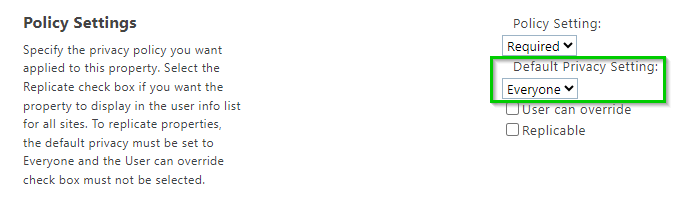
- In the Policy Settings, it is needed that the Default Privacy Setting is set to Everyone (required)
- Choose if you want the custom property to be shown in the profile properties section of the user’s profile page or not (optional)

- In order to be able to search, the Search Settings for the custom property need to be set to Indexed (required) and you can also set an Alias which can be used for scripting (optional)

The remaining settings can be left at their default values.
To speed up the crawl for the search, the property can be set for individual user profiles. Otherwise, it can take from 4 up to 72 hours until the custom property has been crawled and you can continue with the next step.
Check if the search has picked up the custom property
Before you start with the next step, verify if the custom property you created in the previous step is listed under Crawled Properties.
- In the SharePoint Admin Center navigate to More features -> Search select Open

- Then open the Manage Search Schema

- Under Crawled Properties, make sure that the search picked up the custom property and crawled it – the custom property is listed under the Category: People.

Map the crawled property to a new managed property in Search Schema
In our example, we want the custom property to be available in the full-text search. This means that a user can simply enter the value in the search bar and receive the result.
A typical scenario would be, for example, the employee ID. To achieve this, the crawled custom property must be mapped to a managed property.
- In the Manage Search Schema (which we are already in after the previous step), switch to Managed Properties and select New Managed Property

- Give your managed property the desired Name and description (required)

- Configure the Main characteristics with the following information as follows
Searchable: checked
Advanced searchable settings -> Full-text index: PeopleIdx
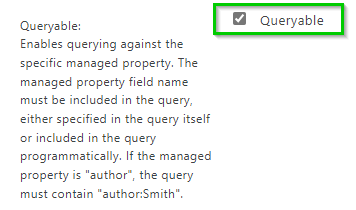
Quearyable: checked
Retrievable: checked



- Map the managed property to the crawled (custom) property


Short way of the configured solution (without pictures and additional description)
- On the SharePoint Admin Center -> More features -> User Profiles -> Manage user properties -> Create a New Property
- Configure the custom property according to your needs (at least)
- Name
- Display Name
- Policy Settings -> Default Privacy Setting: Everyone
- Search Settings: Indexed (checked)
- Check if the custom property was picked up and crawled by search
- SharePoint Admin Center -> More features -> Search -> Manage Search Schema -> Crawled Properties
- Create a new managed property and map the crawled (custom) property to it
- Managed Search Schema -> Managed Properties -> New Managed Property
- Configure the managed property according to your needs (at least the following need to be set)
- Property name
- Description (optional)
- Searchable: checked
- Advanced searchable settings – Full-text index: PeopleIdx
- Queryable: checked
- Retrievable: checked
- map the managed property to crawled property


 Doudisblog
Leave a comment